Access Settings
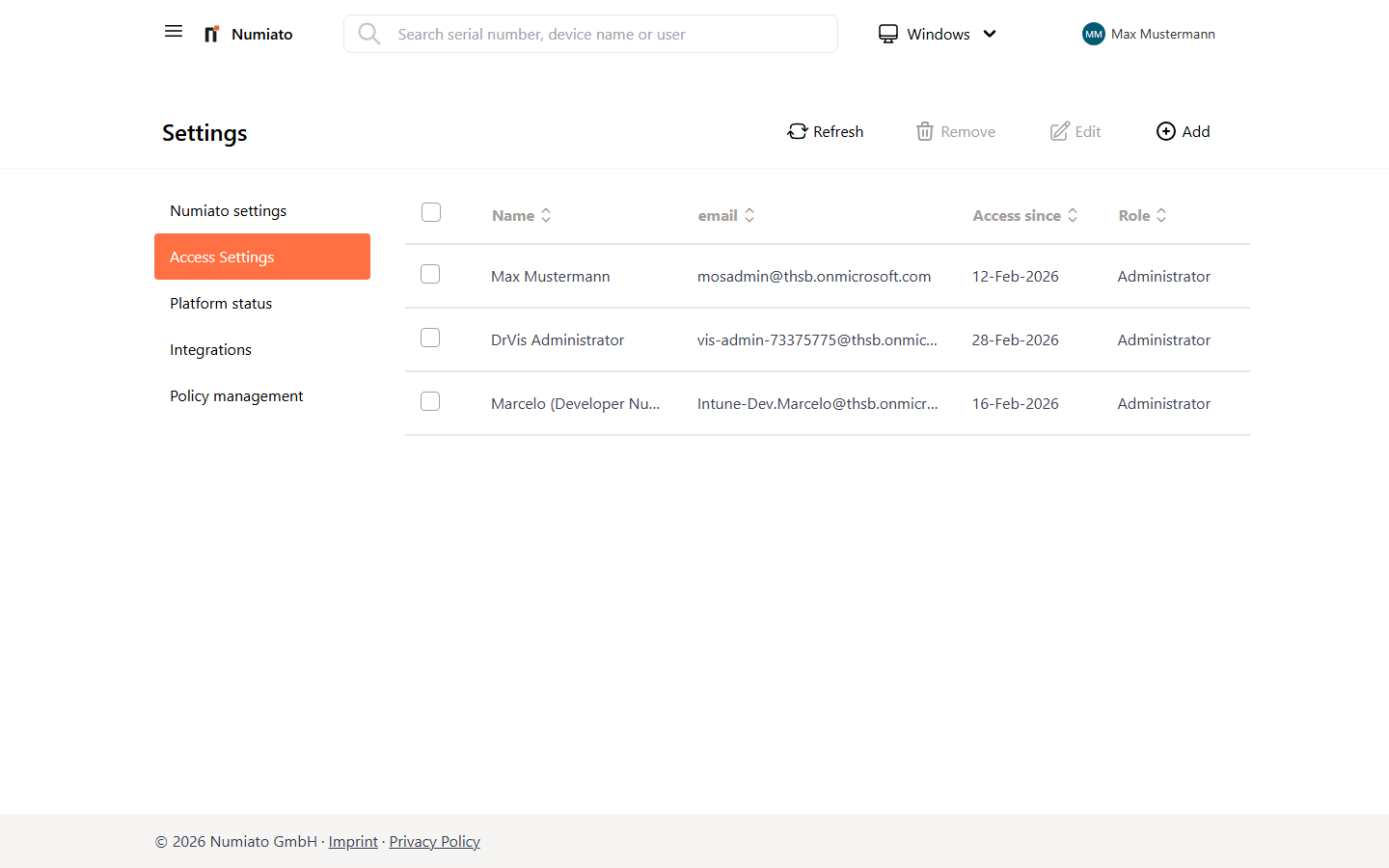
Permissions
Numiato uses a role system to assign different permissions to different administrative groups:
- Administrator: Full access to all modules in Numiato; can add or delete users and change roles.
- Device Manager: Limited access, primarily responsible for device management; however, cannot manage applications, printers, or policies. This role is intended for on-site administration.
Module access by role:
| Module | Access |
|---|---|
App Store |
Administrator |
Policy Management |
Administrator |
Printer Management |
Administrator |
Application Management |
Administrator, Device Manager |
Group Management |
Administrator, Device Manager |
Device Management |
Administrator, Device Manager |
Status & History |
Administrator, Device Manager |
Settings |
Administrator, Device Manager |
Grant Access
To add a new user:
- Navigate to Settings > Access Settings.
- Click Add in the top menu bar.
- Select the desired user and the corresponding role.
- Click Add to complete the process.
Note for Vis365 customers
During initial setup, all administrators and co-administrators from Vis365 are automatically added as administrators in Numiato. New administrators in Vis365 are also automatically added as administrators in Numiato.
Revoke Access
To remove a user:
- Navigate to Settings > Access Settings.
- Select the relevant user.
- Click Remove in the top menu bar.
- Confirm the process.
Warning
It is not possible to remove the last remaining administrator.
Change Role
To change the role of a user:
- Navigate to Settings > Access Settings.
- Select the relevant user.
- Click Edit in the top menu bar.
- Select the new role.
- Click Save Changes to complete the process.
Note
Only administrators can change roles.