Manage Device
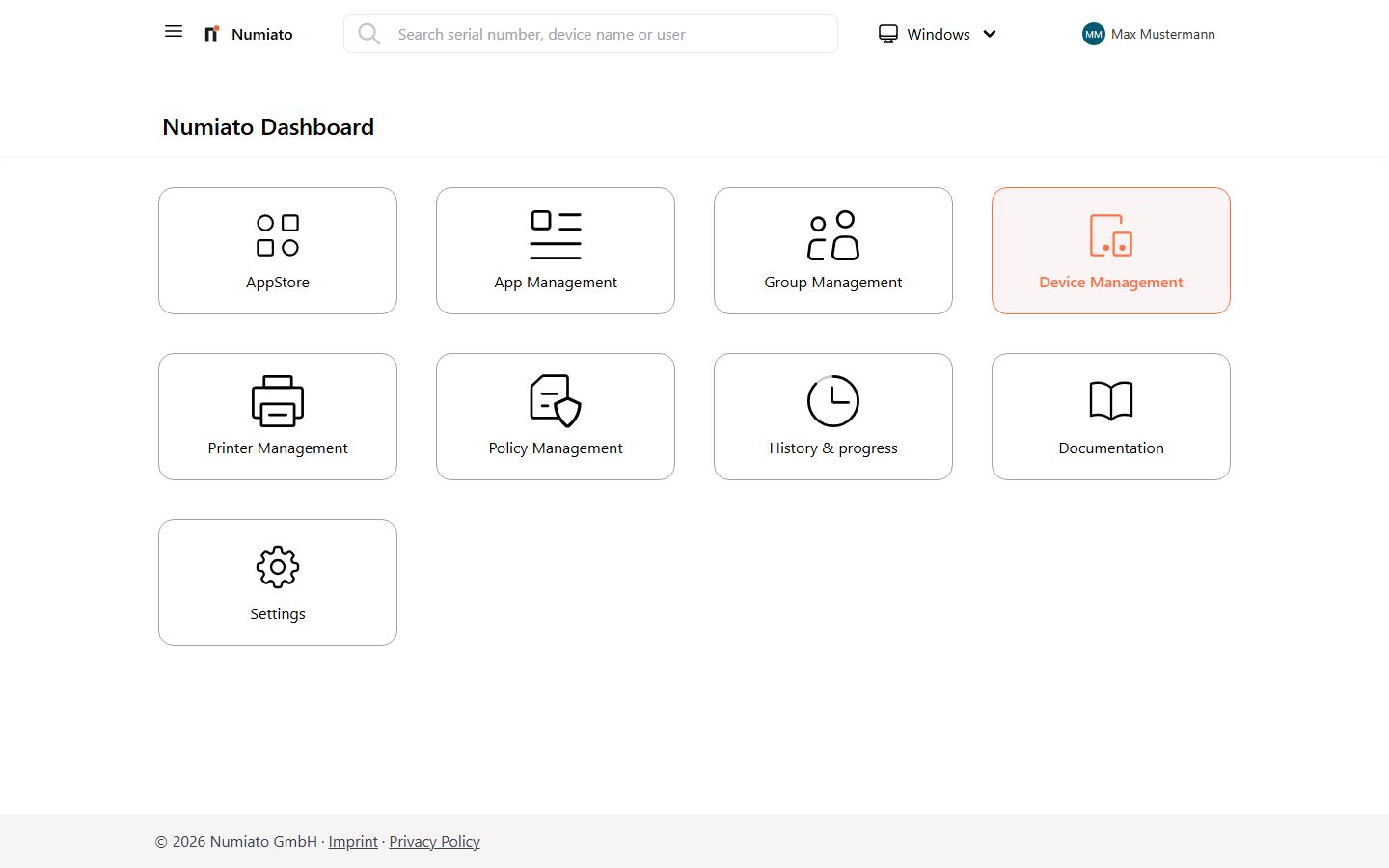
In Numiato you can perform various actions on your devices:
- Sync: Force immediate changes and updates.
- Restart: Restart the device.
- Reset: Prepare the device for safe handover to another person.
- Remove: Remove the device from management.
- Assign: Assign the device to a category or room.
- Remove Passcode (iPad): Remove the passcode from an iPad.
Assign Device
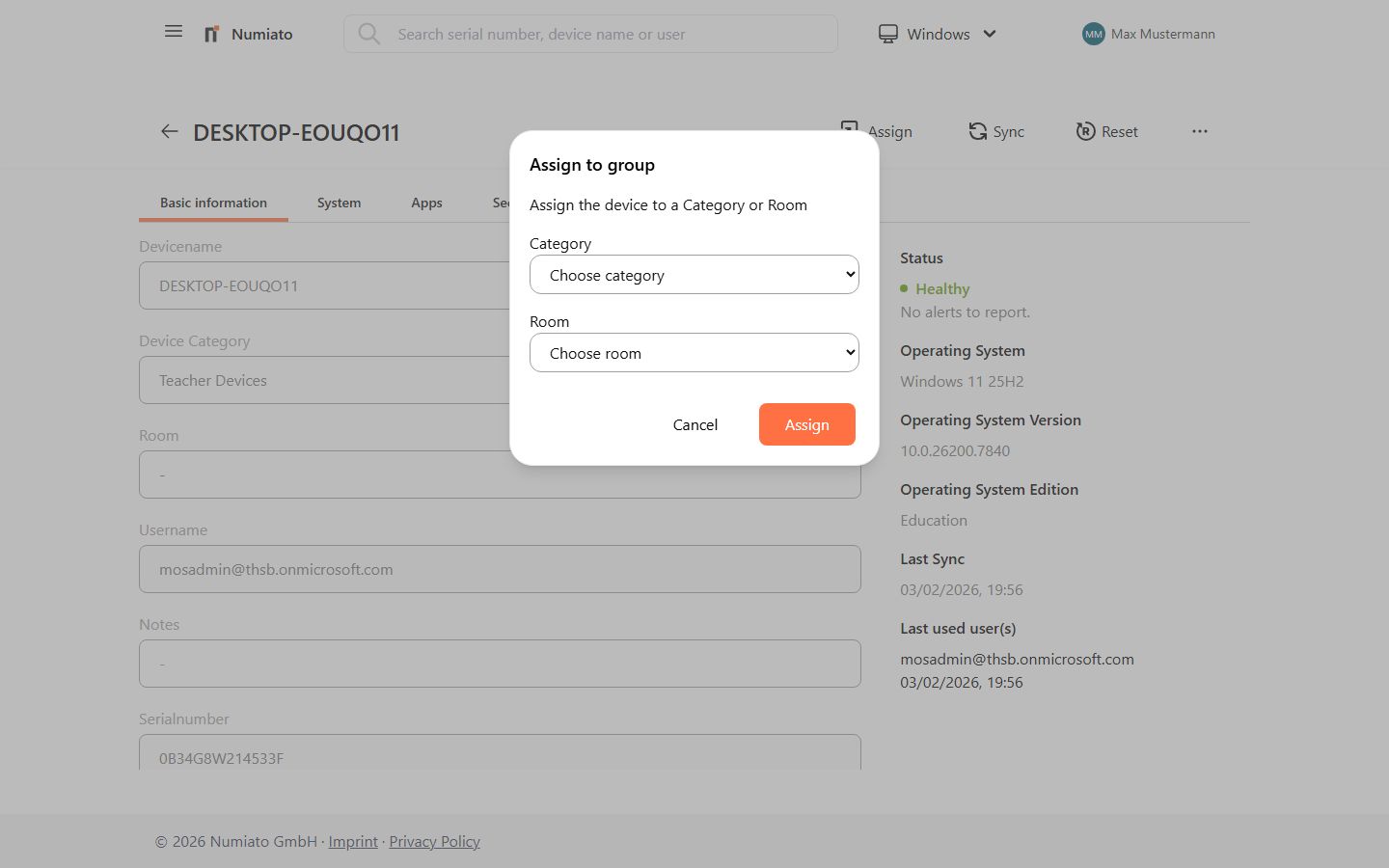
It is essential to assign devices to the correct category and appropriate room so that the correct applications, printers, and policies are applied.
Note
Every device should be assigned to at least one category.
Steps:
- Navigate to Numiato Device Management.
- Select the desired device.
- Click Assign.
- Select the category and/or room.
- Confirm with Assign.
- Done.
Remove Device
Instructions for removing a device can be found under Remove Device
Reset Device
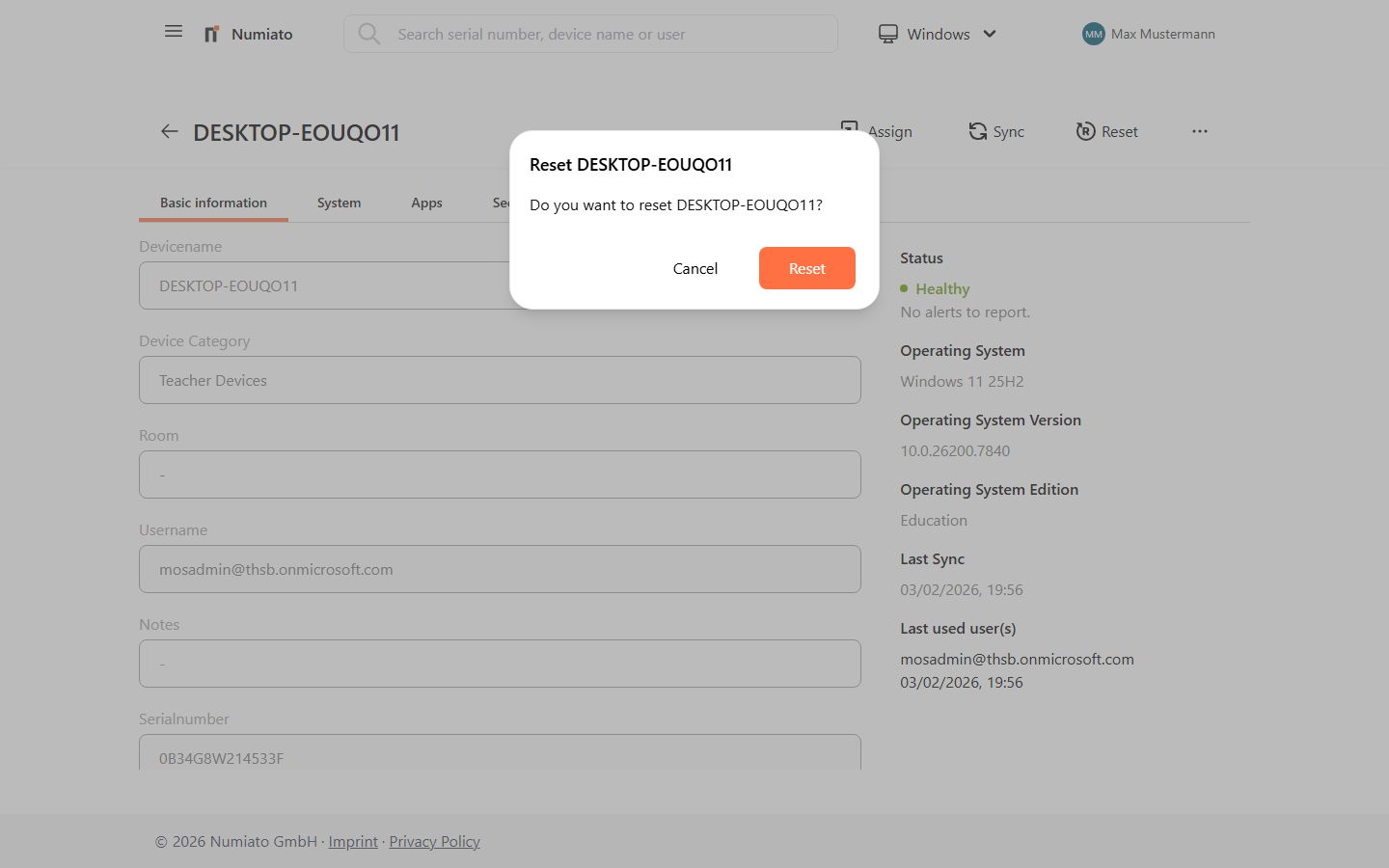
When a device is passed on to a new student or teacher, it should be reset. This includes:
- Resetting the device to factory settings
- Deleting all existing data and software
- Providing the latest profiles and software
Steps:
- Open Numiato Device Management.
- Select the desired device.
- Click Reset.
- Confirm the process.
Sync Device
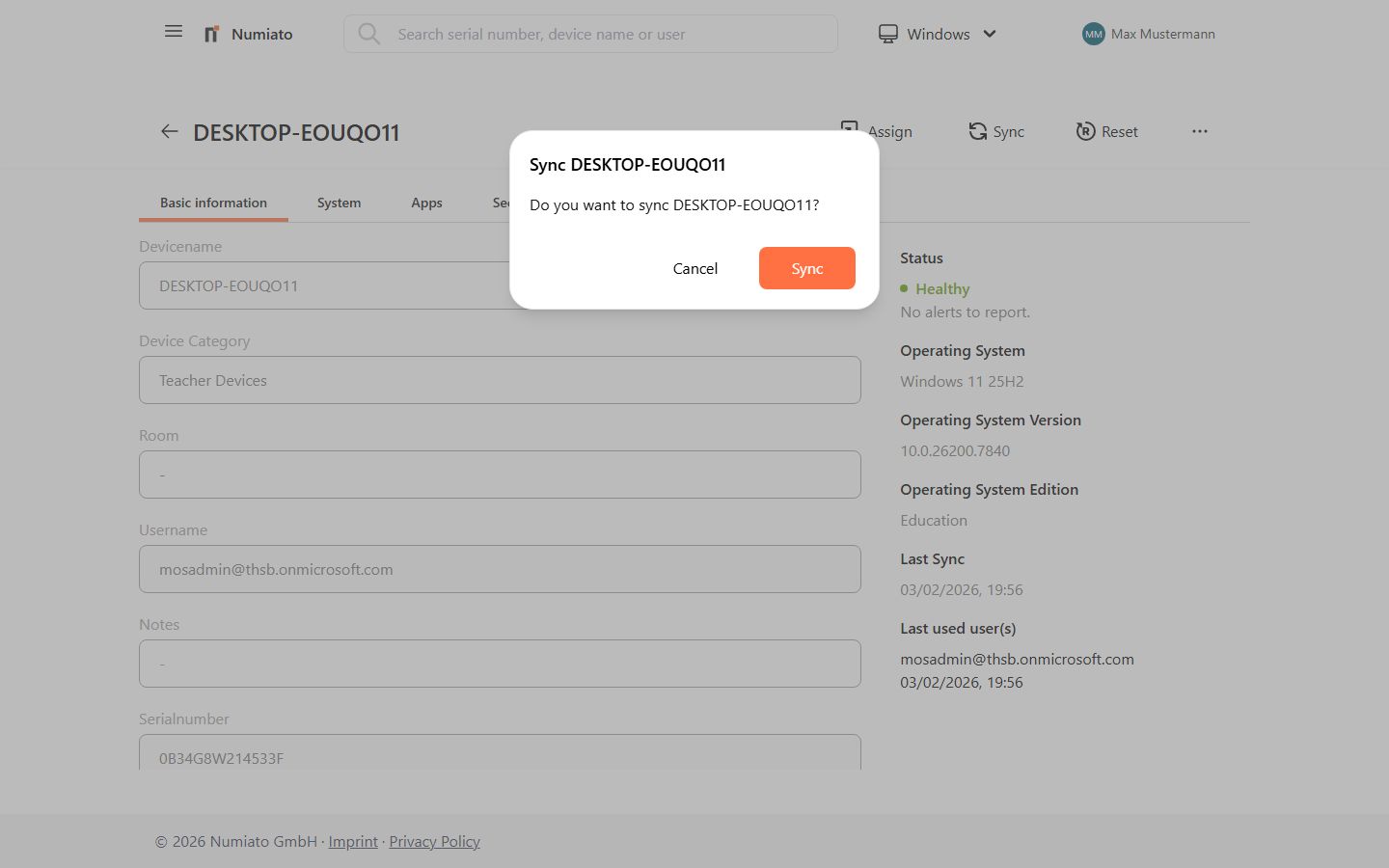
The Sync action forces the device to immediately check in with Intune and receive all assigned tasks and policies.
Info
Sync does not force application installations.
Steps:
- Open Numiato Device Management.
- Select the desired device.
- Select Sync.
- Confirm the process.
Restart Device
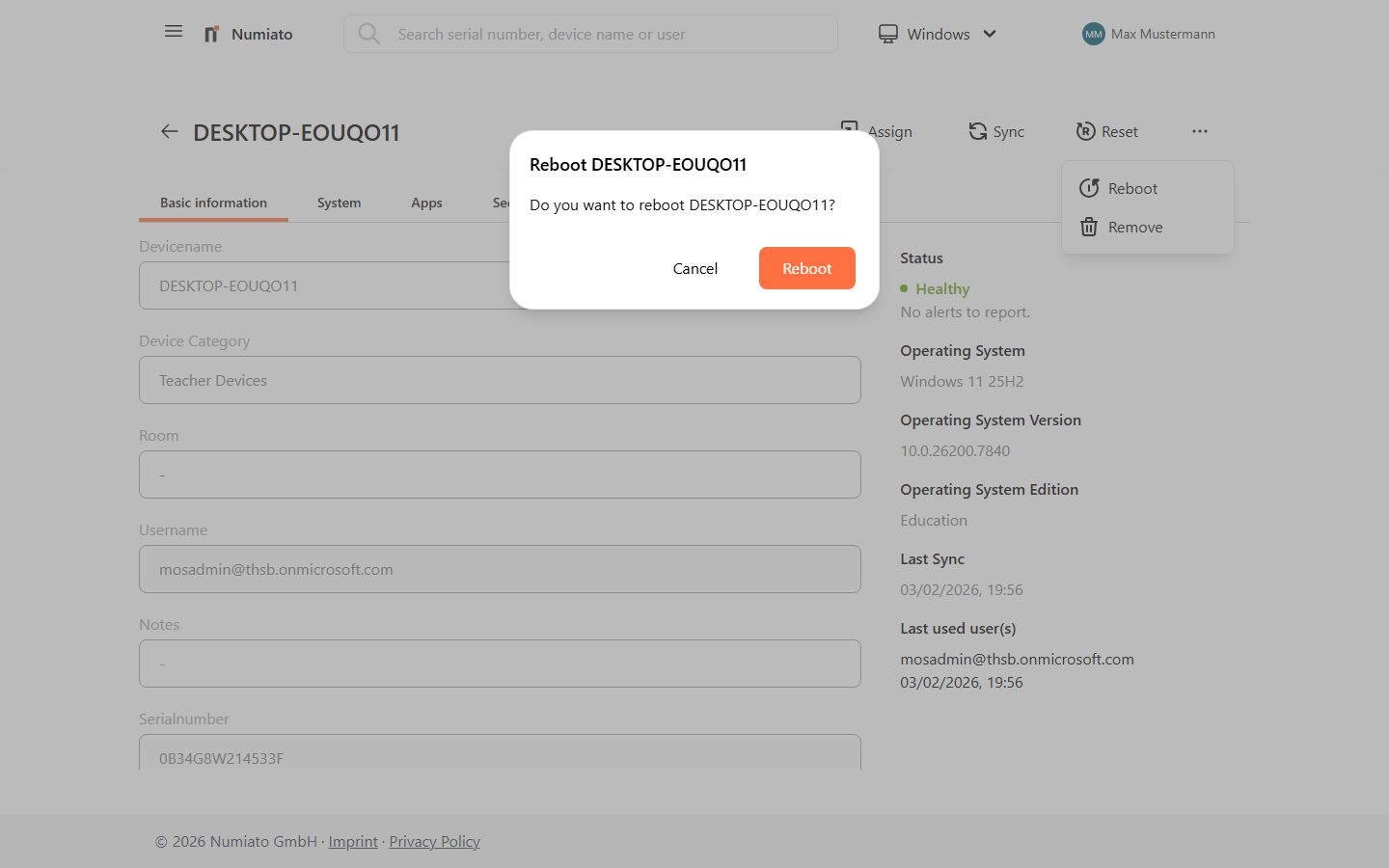
The Restart action restarts the device within 5 minutes.
Warning
The device user is not automatically notified, which can lead to data loss.
Steps:
- Open Numiato Device Management.
- Select the desired device.
- Click Restart.
- Confirm the process.
Remove Passcode (iPad)
The Remove Passcode action removes the existing passcode from an iPad, e.g. when a student/teacher has forgotten it.
Note
This action is only available for iPads.
Warning
Only reset the passcode when the person is available to set a new one, as the iPad will otherwise remain unprotected.
Steps:
- Open Numiato Device Management.
- Select the desired device.
- Click Remove Passcode.
- Confirm the process.