Dashboard
Modules
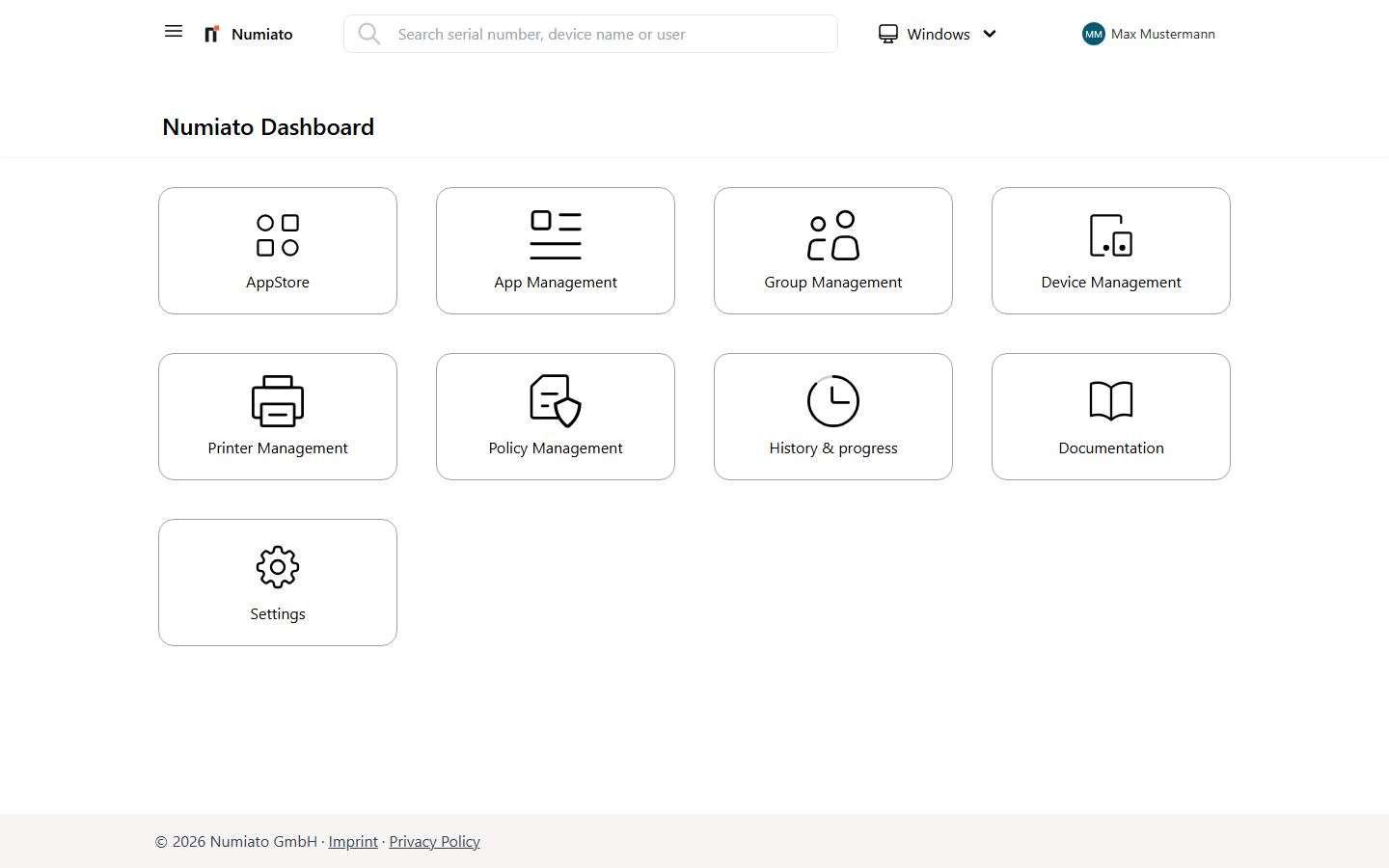
After logging in to your Numiato instance, the dashboard awaits you. From here you can navigate to the individual modules.
App Store
The App Store allows you to add software packages to your inventory and make them available for installation.
Install & Manage Apps
Here you can install or uninstall software packages on individual devices, categories, or rooms.
Groups
Create your own device categories and rooms. You will use these later to assign applications and policies to devices.
Device Management
View the status of your devices and perform device actions (e.g. restart, reset). You assign devices to categories and rooms and view current information about your devices.
Policies
Configure device settings for all devices or specifically for categories and rooms.
Printer Management
Add, configure, and manage printers. You can assign printers to specific rooms or categories.
Status & History
See whether executions in the Numiato portal were successful or failed, and when and by whom an action was performed.
Settings
In the settings you can make central configurations for Numiato.
Menu Bar
At the very top of every page you will find the menu bar. This serves as the central navigation in Numiato and is the same on every page.

Navigation Bar
On the left, click the hamburger menu (≡) to quickly switch to another module.
Search
In the center you will find the central search: with it you can find device names, serial numbers, or users in a flash. Just enter a few letters of the device name or a few digits of the serial number, and the system will immediately suggest the first results.
The following search criteria are available:
- Device name
- Serial number
- Name of the primary user
It is also possible to search for certain characters within the name/serial number.
Note
A maximum of 10 results are displayed; you need to be more specific with your search to see more results.
Device Mode
You can select what type of devices you want to see the Numiato interface for. The following devices can be managed:
Windows iPads macOS
User Menu
On the right you can access additional settings at any time by clicking on your name or picture.
Language
You can change the language at any time by clicking on your name in the top right. By default, the language of your operating system is used.
The following languages are currently available:
- German
- English
Logout
You can log out at any time by clicking on your name in the top right. You should always do this after using Numiato – especially when you are not at your own computer. This prevents other users on the same PC from accessing your instance.
Warning
Please log out every time you access the Numiato portal from a device that is not your own.