Category
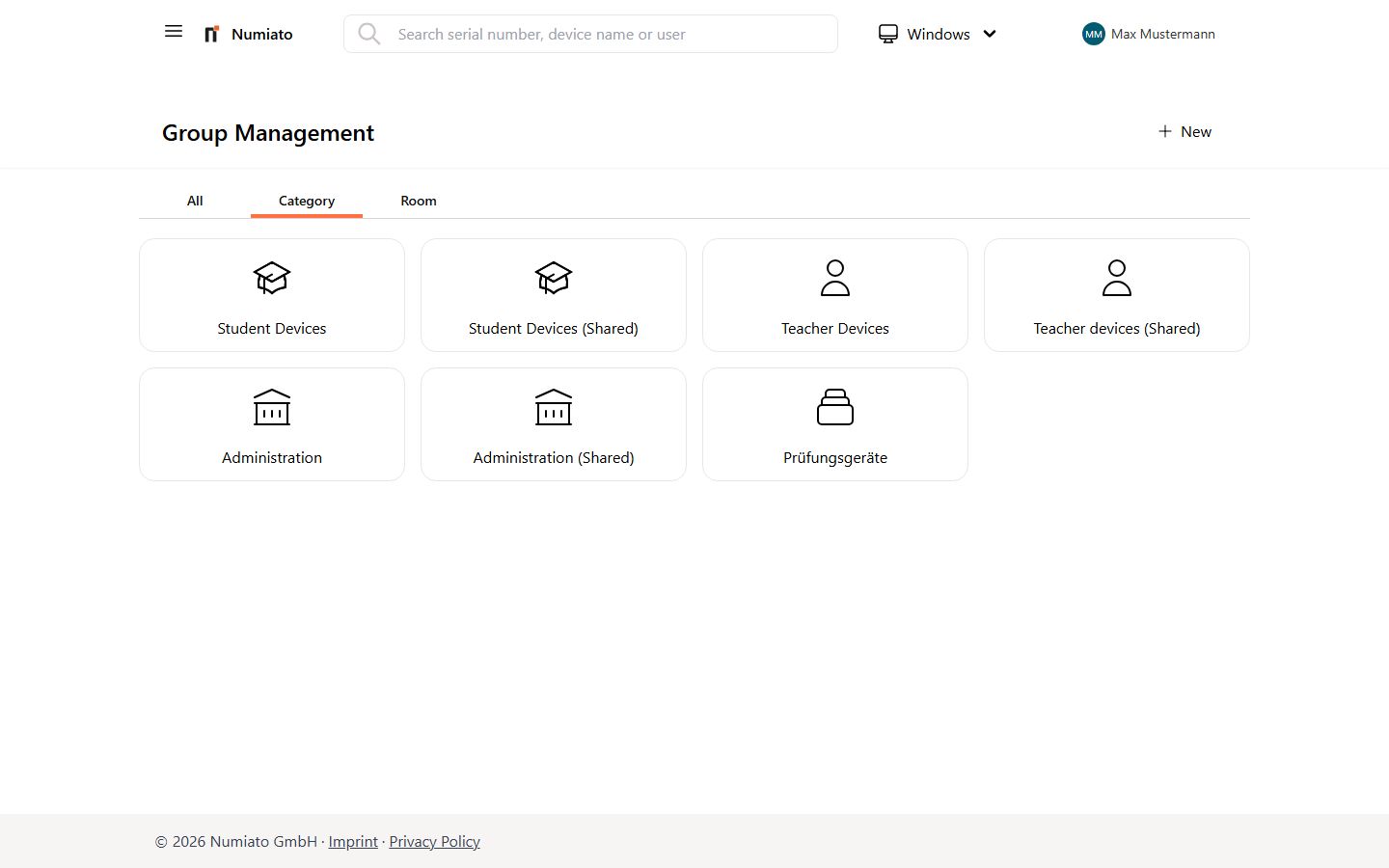
To easily assign applications, printers, and policies, you should always assign your devices to a device category. In group management you can create, edit, and remove categories.
Default Categories The following categories are automatically created and cannot be deleted:
- Teacher Devices: Devices used by teachers in a 1:1 relationship.
- Student Devices: Devices used by students in a 1:1 relationship.
- Administration Devices: Devices used by administrative staff in a 1:1 relationship.
- Shared Devices: Devices used by many different users in a 1:N relationship.
- Student (Shared Devices): Devices used by many different students in a 1:N relationship.
- Teacher (Shared Devices): Devices used by many different teachers in a 1:N relationship.
- Administration (Shared Devices): Devices used by many different administrative staff in a 1:N relationship.
Warning
The Shared Devices group will be migrated to Student (Shared Devices) in the future. It is recommended to re-sort your devices accordingly.
Create Category
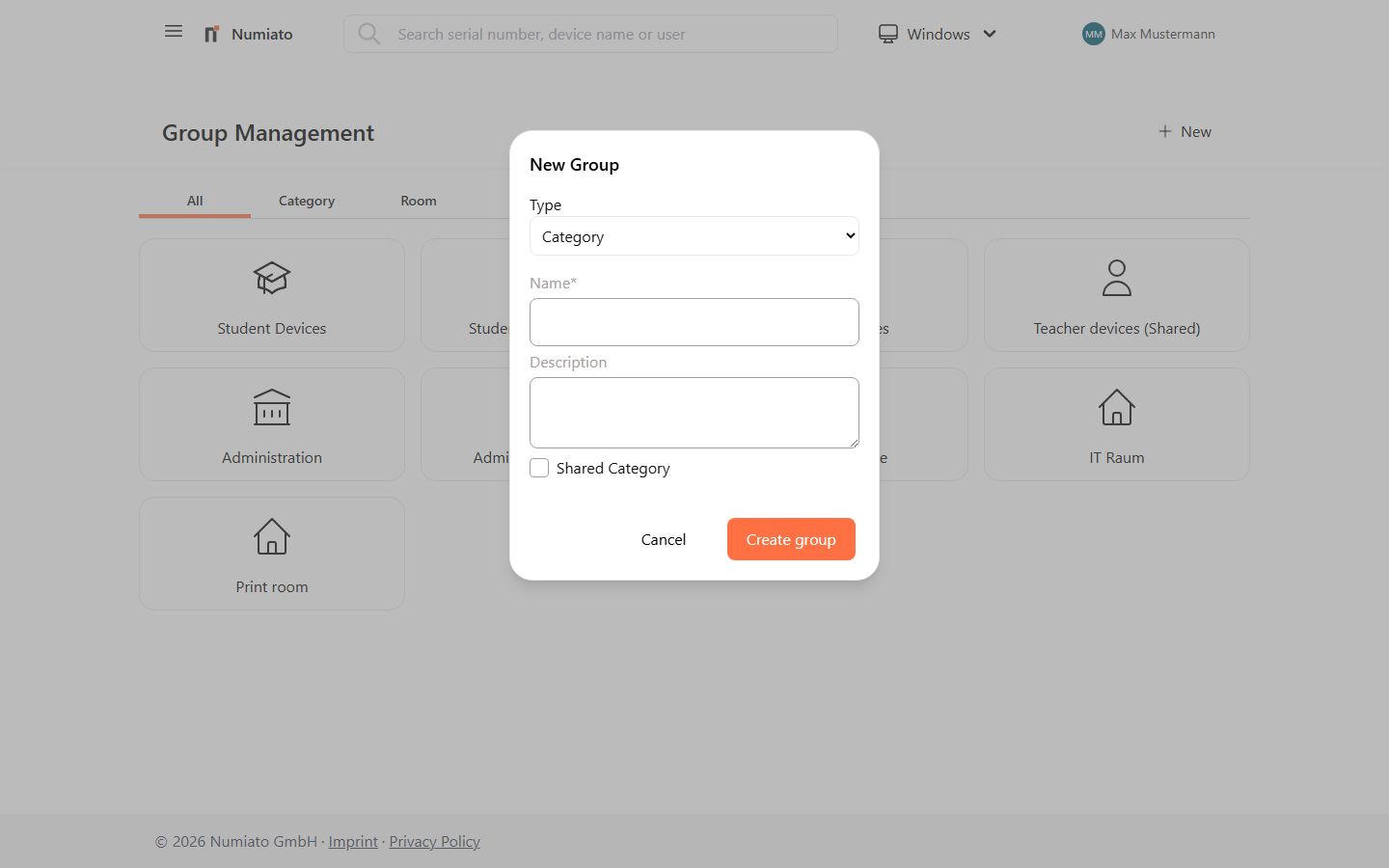
To create a new category:
- Navigate to Numiato Group Management.
- Click Add in the top right.
- Select Category as the type.
- Enter a name and description.
- If needed, enable the Shared Device Category checkbox to configure the category as a shared device category. This is suitable for devices used by many different users.
- Click Add Group.
- Monitor the progress in Status & History.
- The category has been created successfully.
Edit Category
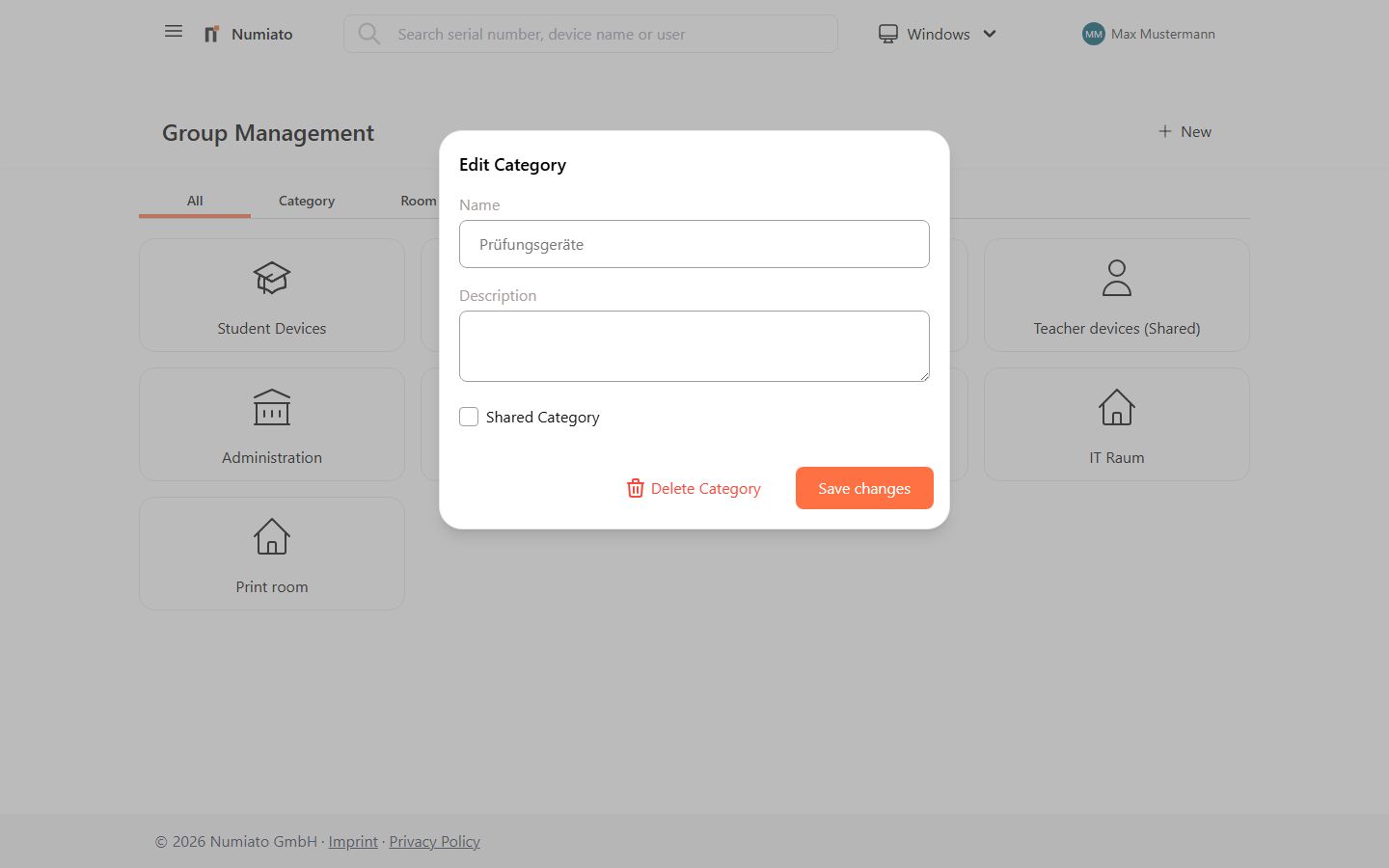
To edit a category:
- Navigate to Numiato Group Management.
- Select the category you want to edit.
- Change the name or description.
- Click Apply Changes.
- Monitor the progress in Status & History.
- The category has been edited successfully.
Delete Category
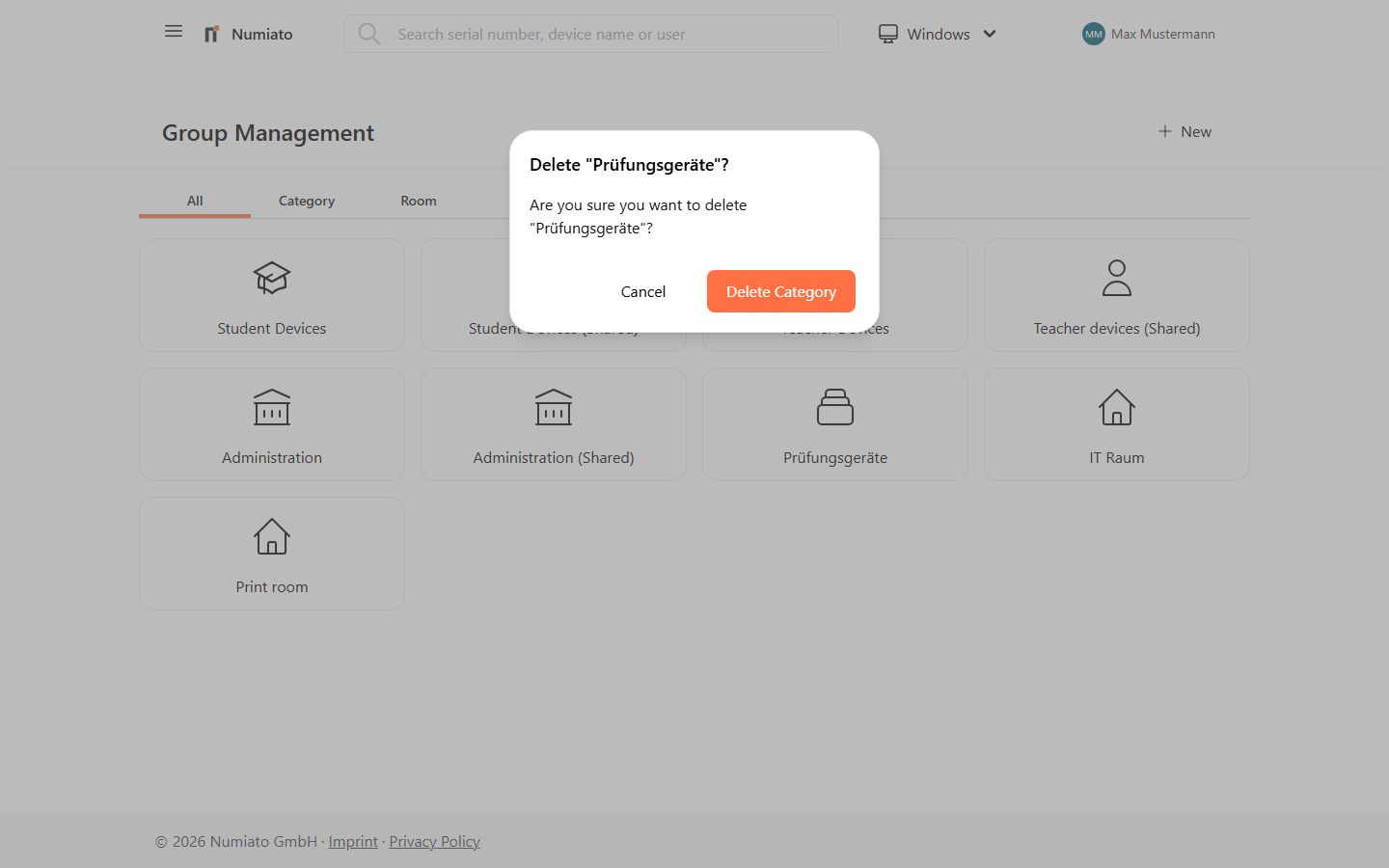
To remove a category:
- Navigate to Numiato Group Management.
- Select the category you want to delete.
- Click Delete Category.
- Monitor the progress in Status & History.
- The category has been removed successfully.